

Dear Moodle users,
You will have noticed that Moodle has been recently upgraded and it now gives access to the new, improved Common Awards HubPlus service. As with any software upgrade, it can take a bit of getting used to, but initial signs are that both upgrades will provide us with additional features and smoother usability in the long run!
Work will be ongoing on Moodle over the next few months to make sure it works for us in an optimum way, but all major changes have now taken place. You can find a short video guiding you through the menus and the various facilities that are available to you within Moodle and where you can find them: https://queens.commonawards.org/course/section.php?id=18259
The video begins by highlighting some of the changes in how Moodle provides access to e-resources (the Hub, the ATLA database, Queen’s online journals etc.) but only demonstrates how to access to these services. For more information on how to use these various resources in your studies, the librarian has created a range of helpful videos that are accessible from the Library Moodle page here: https://queens.commonawards.org/course/view.php?id=1506
I have done extensive checking over the last few weeks and teething problems with access to the new Hub fall into a few categories. Here is some advice if you encounter something unexpected:
- If you receive this error message (or similar) when trying to use the new Hub:
This is login.htm from the docs subdirectory. Review http://www.oclc.org/us/en/support/documentation/ezproxy/url/admin/
This is likely because your computer has remembered an old protocol and your internet browser is trying to redirect you to the old Hub service. Try the below actions to help your computer forget the old Hub and start afresh with the new one!
- Clear your cache and cookies. This works differently depending on the browser you’re using. In the first instance, Windows users can try the keyboard shortcut Ctrl+Shift+Delete (or Cmd+Shift+Delete on a Mac) to open the "Clear browsing data" window, or go through the browser's settings menu. Select a time range (such as "All time") and check the boxes for "Cookies and other site data" and "Cached images and files" before clicking "Clear data". You will need to clear your cache back to a date BEFORE you first used the old Hub, or it will still remember it! You will then need to close your browser (and I recommend restarting your computer) before trying again.
- If this doesn’t work, do an internet search for clearing your cache for the specific internet browser you are using. For example, Google Chrome has a menu within its ‘settings’ accessed by the three dots menu in the top right hand corner. Mac users can use the finder app to locate their cache folder and send to trash!
- If you cannot clear your cache within your favourite internet browser, try a different browser altogether (this will help to demonstrate that it is an issue with the browser). In the short term, you can also try accessing via an incognito or private browsing session (this doesn’t use any saved data and can’t draw on past information to send you to the wrong place!)
- If you have accessed the new Hub successfully but then find a link that doesn’t provide access, please do the following:
Let the lead tutor for that module know. Send them the specific URL (web address) for the page so they know exactly where to find it and send them a screenshot of what you see when you click the link.
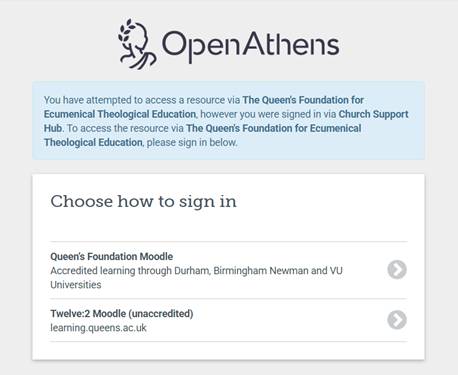
- If you see this (below) OpenAthens pop up, don’t worry. Here’s why:
Common Awards now uses the same software to authenticate your access to the Hub as Queen’s does for its own resources. This isn’t a problem, but if you cycle between using Queen’s and Common Awards resources, it will add one extra click in between, as the software tries to work out which of the two OA services you’re trying to use: Queen’s or CA. In short, if the last resource you successfully accessed was a Hub resource, and then you want to access a Queen’s journal or e-book, then you will need to tell CA to switch its authentication. You do this by clicking the top option on the page that appears (Queen’s Foundation Moodle) and you should be given access as normal.
- If you come across any other issue, please let us know by completing the following form on the Help page on Moodle: https://queens.commonawards.org/course/section.php?id=18266
Please include as much information as possible, so that we can follow up and investigate. You must include:
1. The full URL (web address) of where you encounter the problem
2. A screenshot of what you see
Thanks for all the feedback via academic reps. We will continue to listen and make changes so make sure all of our online resources work as well as possible.
Jen